
Why does my phone keep freezing is one of the most searched smartphone questions in 2026.
If your screen locks up mid-call, during gaming, or while scrolling, you are not alone. Millions of Android and iPhone users deal with this daily.
The good news is that most freezing issues are fixable without replacing your device.
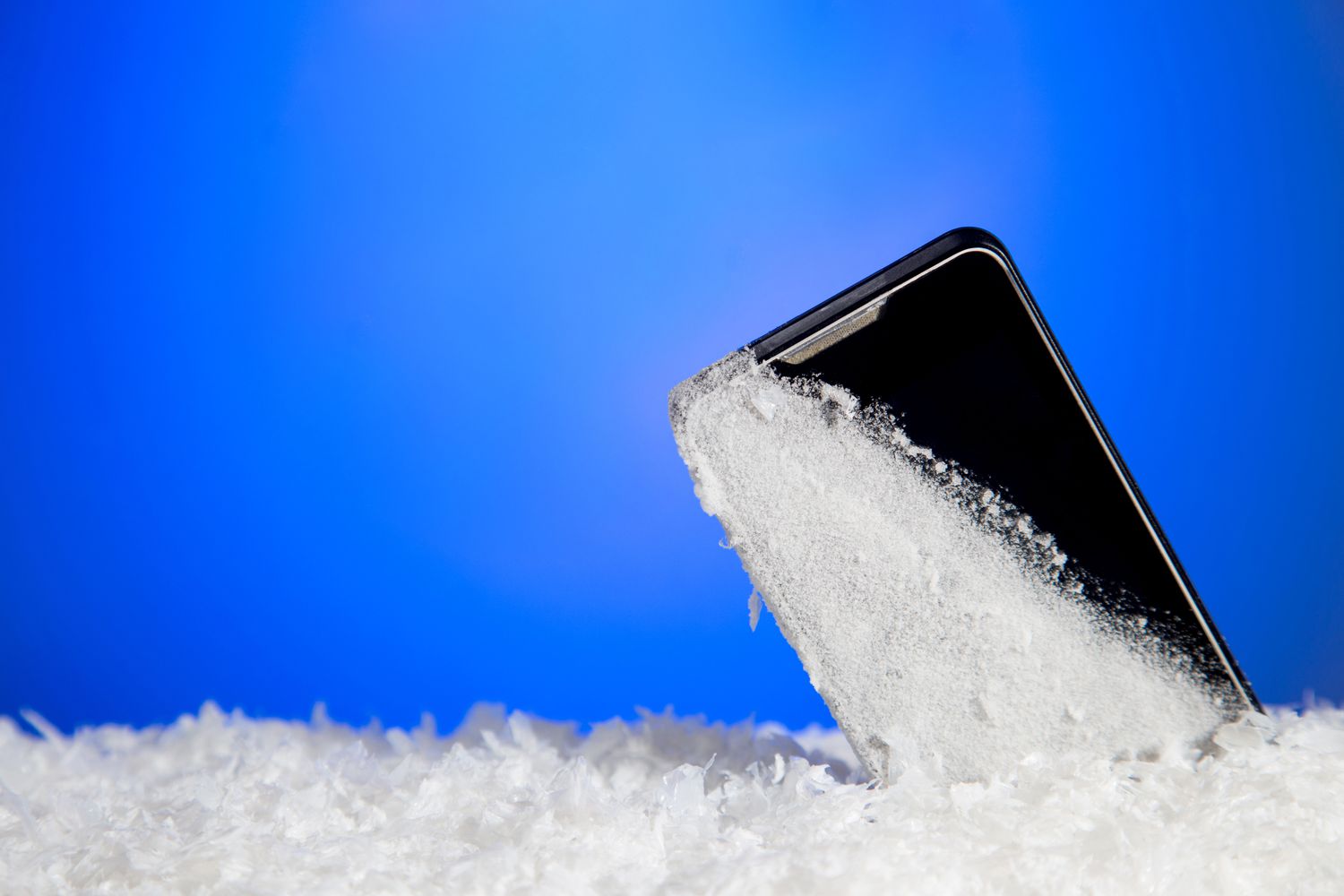
Your phone freezes when its processor, RAM, or storage cannot handle what you are asking it to do.
Modern smartphones run dozens of tasks at once. When any one system is overloaded or broken, the device becomes unresponsive.
There are two root categories: software problems and hardware problems. Understanding which one applies to you saves a lot of time.
| Type | Common Causes | DIY Fix Possible? |
|---|---|---|
| Software | Outdated OS, bad apps, low storage, cache buildup | Yes, in most cases |
| Hardware | Failing battery, damaged motherboard, overheated processor | Usually needs a technician |
Most freezes are software-related. Start there before assuming the worst.
Freezing is not just annoying. It is your phone telling you something is wrong.
A frozen screen that recovers after 10–30 seconds usually means a RAM or cache issue. A phone that freezes and restarts repeatedly often signals battery degradation or a hardware fault.
Every app you open stays in memory even after you swipe away. Your phone’s RAM fills up fast.
When RAM runs out, your phone cannot process new tasks. The result is a frozen or laggy screen.
Fix: Double-tap your home button and close all background apps. Restart your phone to flush memory completely.
Your phone needs free storage not just to save files but to run smoothly. Apps use temporary space for processing.
When storage drops below 10–15% free, the operating system starts struggling. Expect slowdowns, app crashes, and freezing.
Fix: Delete unused apps, move photos to cloud storage, and clear downloaded files. Keep at least 1–2 GB free at all times.
Skipping OS updates is one of the most common reasons phones freeze in 2026. Updates fix bugs and patch compatibility issues.
Old operating systems often conflict with newer apps. This mismatch causes instability and random freezing.
Fix: Go to Settings → Software Update (iPhone) or Settings → System → Software Update (Android) and install the latest version.
Heat is a silent phone killer. Your phone throttles its processor speed when it gets too hot to prevent hardware damage.
That throttling shows up as freezing or extreme slowness. Common triggers include gaming, video streaming, charging while using apps, and direct sunlight.
Fix: Remove your phone case, put the device in a cool spot, and stop resource-heavy tasks until the temperature drops.
One badly coded app can freeze your entire phone. This is especially common after a major OS update when older apps have not been updated to match.
You may not even realize which app is the culprit until you test in Safe Mode.
Fix: Boot into Safe Mode (hold power button, then press and hold “Power Off” on screen). If freezing stops, a third-party app is the cause. Uninstall recently added apps one by one.
Apps store temporary data called cache to load faster. Over time this builds up and can become corrupt.
Corrupt cache confuses the operating system and causes apps to freeze or crash without warning.
Fix (Android): Go to Settings → Storage → Cached Data → Clear. For individual apps: Settings → Apps → [App Name] → Storage → Clear Cache.
Fix (iPhone): Offload and reinstall the app. There is no system-wide cache clear on iOS.
Malware uses your phone’s CPU and RAM to run background processes you cannot see. This consumes resources and causes serious freezing.
Side-loaded apps (downloaded outside official app stores) are the most common source of mobile malware.
Fix: Uninstall apps downloaded from outside the App Store or Google Play. Run a reputable security scan on Android. Avoid unknown APK files.
A degraded battery cannot deliver stable voltage to your processor. When voltage drops suddenly, your phone freezes or restarts.
iPhones older than 2–3 years and Android phones with heavy usage often show this problem. Apple’s Battery Health feature lets you check your battery status directly.
Fix: Check battery health. Go to Settings → Battery → Battery Health (iPhone) or use AccuBattery on Android. Replace the battery if health is below 80%.
A weak or unstable Wi-Fi or cellular signal causes apps that rely on internet connectivity to hang. The app waits indefinitely for a response and freezes.
This is especially noticeable with streaming apps, social media, and cloud storage apps.
Fix: Toggle Airplane Mode on and off to reset network connections. Switch between Wi-Fi and mobile data to test. Restart your router if the issue is Wi-Fi-specific.
Physical damage from drops, water exposure, or electrical issues can damage internal components. A faulty logic board or memory chip causes persistent freezing that no software fix will solve.
If your phone freezes even after a factory reset, the cause is almost certainly hardware-related.
Fix: Take your device to a certified repair center for a diagnostic test. Do not delay as continued use can worsen the damage.

These steps fix the majority of freezing issues. Try them in order before moving to advanced solutions.
Step 1: Restart your phone. Hold the power button and select Restart. This clears RAM and temporary processes immediately.
Step 2: Free up storage. Delete apps you have not used in 60 days. Move photos to Google Photos or iCloud. Remove downloaded videos.
Step 3: Update your OS and apps. Open your settings and check for system updates. Open the App Store or Google Play and update all apps.
Step 4: Clear cache. On Android, clear cache for apps you use most. On iPhone, offload heavy apps and reinstall them.
Step 5: Check for overheating. If your phone feels warm, stop charging, close all apps, and let it rest for 10–15 minutes.
If basic steps did not work, move to these options.
This resets Wi-Fi passwords, display settings, and app preferences but keeps your photos and apps intact.
iPhone: Settings → General → Transfer or Reset iPhone → Reset → Reset All Settings.
Android: Settings → System → Reset Options → Reset All Settings.
Safe Mode disables all third-party apps temporarily. If your phone stops freezing in Safe Mode, a downloaded app is the cause.
Android: Hold the power button, then press and hold “Power Off” until you see the Safe Mode prompt.
iPhone: Does not have Safe Mode but you can identify problem apps by turning off Background App Refresh for individual apps.
A factory reset erases everything and gives your phone a clean start. Only do this after backing up your data.
iPhone: Settings → General → Transfer or Reset iPhone → Erase All Content.
Android: Settings → System → Reset Options → Erase All Data.
Some freezing problems are beyond DIY fixes. Seek a repair technician if:
Prevention is always better than troubleshooting. Follow these habits consistently.
Restart your phone at least once a week. This clears cached processes and refreshes memory without deleting anything.
Close background apps after heavy sessions like gaming or streaming. Do not leave 15 apps open all day.
Avoid charging and gaming at the same time. The combined heat stress accelerates battery aging.
| Task | How Often | Benefit |
|---|---|---|
| Restart phone | Weekly | Clears RAM and temp files |
| Clear app cache | Monthly | Prevents corrupt data buildup |
| Check for OS update | Monthly | Bug fixes and performance patches |
| Review storage | Monthly | Keeps 15%+ free space |
| Audit installed apps | Monthly | Remove unused or suspicious apps |
| Check battery health | Every 3 months | Catch degradation early |
Keep your phone storage at no more than 80–85% full at any time. Use cloud services like Google Photos, iCloud, or OneDrive to offload media without deleting it.
On Android, use Files by Google to find and remove duplicate files, large downloads, and offline content. On iPhone, use Settings → General → iPhone Storage to see which apps are taking the most space and offload them automatically.
Only install apps from the official App Store or Google Play. Uninstall any app you have not opened in 60 days.
Avoid apps with consistently low ratings and few reviews. Poorly coded apps drain RAM and cause system-wide instability.

| Factor | iPhone | Android |
|---|---|---|
| Cache clearing | App-by-app (offload/reinstall) | System-wide and per-app |
| Safe Mode | Not available natively | Available on most models |
| Battery health check | Built-in (Settings → Battery) | Needs third-party app |
| OS updates | Pushed uniformly to all devices | Varies by manufacturer |
| Freezing after update | Common with major iOS jumps | Common when skipping multiple updates |
| Factory reset difficulty | Easy via Settings | Easy via Settings |
iPhones tend to freeze more after major OS version jumps (e.g., iOS 17 to iOS 18). Android phones often freeze due to storage mismanagement and sideloaded apps.
Both platforms benefit from the same core maintenance: restarts, storage management, and keeping apps updated.
This usually means a battery problem or a hardware fault. Check your battery health and replace it if below 80%.
Charging while running heavy apps generates too much heat. Try charging with the screen off and no apps running.
Yes. A nearly full photo library fills storage and slows down your OS. Move photos to cloud storage regularly.
That app likely has a bug or is not updated for your current OS version. Update or uninstall and reinstall it.
Occasional freezing does not cause damage. However, repeated overheating from freezing under load can degrade your battery faster.
A poor network signal, outdated carrier settings, or overheating can cause call freezes. Restart and update carrier settings.
Yes. Malware runs hidden background processes that consume RAM and CPU. Remove suspicious apps and run a security scan.
New OS versions sometimes have bugs or conflict with older apps. Wait for the next patch update or roll back if possible.
Hold the power button for 10–30 seconds to force a restart. On some phones, hold power + volume down simultaneously.
Not immediately. Try a factory reset first. If freezing continues, get a professional diagnosis before deciding to replace it.
Why does my phone keep freezing is a question with many possible answers, but the most common ones are within your control. Low storage, RAM overload, outdated software, overheating, and battery degradation cover the vast majority of freezing cases in 2026.
Start with the simplest fixes: restart your phone, free up storage, and update your operating system. If the problem continues, dig into app management, cache clearing, and battery health.
A phone that keeps freezing is sending you a clear signal that something needs attention. Address it early and you can avoid more serious problems down the line.
If nothing works after a full factory reset, the issue is likely hardware-related. At that point, a certified repair technician is your best option. Do not wait until the phone becomes completely unusable before seeking help.
Regular maintenance, smart app habits, and keeping your storage healthy will prevent most freezing problems before they start.