
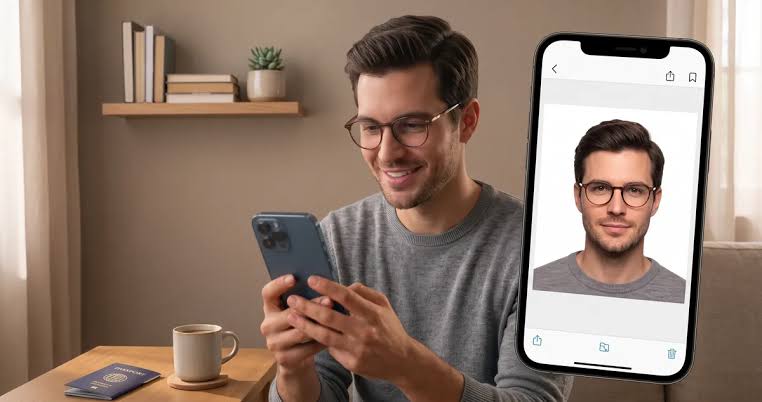
A passport photo looks simple until it gets rejected. Most of the time, the problem is the background. A grey wall, a shadow behind your head, or a patterned curtain can send your photo back and delay your trip. The good news is that you no longer need a studio to fix this. With a free online background remover, you can take a photo at home and swap the backdrop in minutes. This guide shows you how to remove background for passport photo files step by step, what the passport photo requirements say, and which mistakes to avoid. You will learn how to check your photo before you submit it.
A passport photo is used to match your face with your identity. Officers and scanning software need a clean, even image to do that job. Busy backgrounds make it harder to see the edges of your head and hair.
According to a passport photo guide that refers to US State Department rules, the photo should be 2 by 2 inches, recent, unedited, in color, and taken against a plain white or off-white background. Another guide adds that the background should have no shadows, textures, or objects visible.
Photo problems are also a common reason for delays. The same guide notes that the State Department warns photo issues can hold up applications. A wrong background is one of the easiest mistakes to make and one of the easiest to fix.
Here are the problems people run into most often:
Rules change by country, so treat this table as a general guide based on common US standards. Always confirm on your own government website.
| Item | Common Requirement |
| Photo size | 2 x 2 inches (51 x 51 mm) for the US |
| Background | Plain white or off-white, no shadows |
| Color | Full color, not black and white |
| Head size | About 1 to 1 3/8 inches from chin to top of hair |
| Expression | Neutral, both eyes open |
| Glasses | Usually not allowed |
| Editing | No filters or retouching of your face |
| Age of photo | Taken in the last 6 months |
A travel document guide confirms the size and head measurements. It states that the head height from top of hair to bottom of chin should measure 1 inch to 1 3/8 inches, and that the photo should be taken within the last 6 months.
You do not need advanced skills. An AI tool can find the edges of your face and hair, cut out the old backdrop, and place a new color behind you. If you want to try a free option, you can use this tool to remove background for passport photo images directly in your browser.
CapCut describes its passport background remover as a tool with automatic background detection that isolates the subject, plus color options to match photo requirements and high quality output for printing or digital submission. That makes it useful for travelers, students, and anyone who needs a compliant ID photo fast.
The better your original photo, the cleaner the result. Follow these simple rules:
Open the online tool and upload your photo. Common formats like JPG and PNG work well. Use the original file, not a screenshot, so the quality stays sharp.
The tool detects you and cuts away everything else. CapCut states that if areas need fine tuning, you can refine the edges or remove leftover background fragments. Zoom in around your hair and shoulders and clean up any rough spots.
Next, fill the empty space with the right color. The same guide notes that you can delete the existing background from an ID photo and replace it with the required color. Pick plain white unless your country says otherwise.
Set the size to match your country. For the US, that means 2 x 2 inches. Keep your face centered and check that your head is not too large or too small in the frame.
Export the final file at the highest quality. Then run through the checklist below before you print or upload.
CapCut also reminds users that when using a background remover tool, the resulting photo should still meet official passport photo requirements. The tool helps you fix the backdrop, but you are still responsible for the final result.
Here is a simple example to show how this works in real life. This is an illustrative scenario, not a customer testimonial.
Sara takes a selfie in her living room for a passport renewal. A lamp casts a soft grey shadow on the wall behind her. She is worried the shadow will cause a rejection.
Instead of booking a studio, she uploads the photo to an online background remover. The tool cuts out the wall, and she places a plain white backdrop behind her. She then crops to the correct size and checks that her head fits the allowed range. The whole process takes about ten minutes, and the final photo has no shadow at all.
The lesson is simple. A small background problem does not need a new photo session. It only needs a clean edit, plus a careful check against the rules.
| Option | Cost | Speed | Best For |
| Free online tool | Low or free | Minutes | People who want to fix a photo at home |
| Photo studio | Higher | Same day | People who want a professional shoot |
| Drugstore photo counter | Medium | Same day | People who want prints right away |
An online tool is a good fit when you already have a decent photo and only need the background corrected. A studio makes sense if you want a full retake with professional lighting.
Your passport photo is personal data, so think before you upload. Look for tools that explain how they handle files. CapCut states that its safety protocols protect your data while you use the tool for editing tasks. As a general habit, avoid uploading images of documents with your ID number visible, and delete files you no longer need.
Does a passport photo need a white background? In most cases, yes. Many countries accept plain white or off-white. Check your official government page to see the exact color allowed.
Is it free to remove the background from a passport photo? Many online tools offer a free option for basic background removal. Features and limits can change, so check the tool page before you start.
Can I use any color behind me? No. Colored, patterned, or textured backdrops usually lead to rejection.
Can I edit my face in a passport photo? No. Only the background should change. Smoothing, filters, and reshaping are not allowed under common guidelines.
What should I watch for after removing the background? Look for rough edges around your hair, leftover patches of the old wall, and any shadow marks. Then confirm the size and head position.
Are baby photos handled differently? The size and background rules are usually the same. For babies, one guide suggests laying the baby on a plain white or off-white sheet for support and a clean backdrop.
Can I submit a digital photo for online renewal? Online renewal often follows separate digital upload rules. One guide warns that paper and digital photo requirements should not be mixed.
A rejected passport photo wastes time and money, and a bad background is often the cause. With good lighting, a clean cutout, and a plain white backdrop, you can fix most problems from your own phone or laptop. Start with a clear photo, use a reliable tool to remove background for passport photo files, and check the size and head position against your official rules. A few extra minutes of care can keep your application on schedule.