
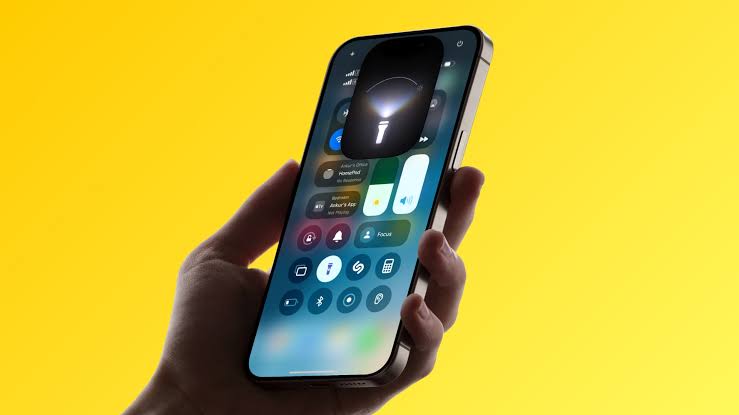
Why cant I use my flashlight is one of the most common questions phone users type into Google when their torch suddenly stops responding. It usually happens at the worst possible moment, like a power cut or a dark parking lot.
The good news is that this problem is rarely serious. In most cases, a background app, a software glitch, low battery, or overheating is blocking the flashlight from turning on.
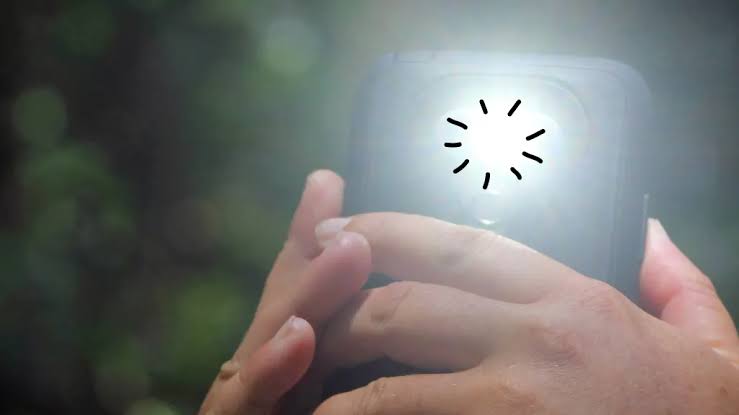
Before jumping into fixes, it helps to understand what is actually stopping your flashlight from turning on. Most causes fall into software, settings, or hardware categories.
Below are the most frequent reasons phones report a greyed-out or unresponsive flashlight icon.
Your flashlight and camera flash share the same LED hardware. If the Camera app, or any app using the camera like Instagram or Snapchat, is open, the flashlight button gets disabled automatically.
Closing the camera app from your recent apps screen usually restores flashlight access instantly.
Low Power Mode on iPhone and Battery Saver on Android limit background features to save energy. On some devices this can restrict flashlight brightness or block it entirely.
Turning this mode off from Settings or Control Center often solves the issue right away.
When your battery drops below a critical level, some phones disable the flashlight to preserve remaining power for calls and essential functions.
Charging your device for even ten to fifteen minutes can bring the flashlight back online.
Phones that get too hot from sunlight, gaming, or heavy charging automatically disable power-hungry features, including the LED flash, to protect internal components.
Letting the phone cool down in a shaded area for a few minutes usually fixes this on its own.
Sometimes the flashlight shortcut gets accidentally removed from Control Center on iPhone or the Quick Settings panel on Android.
Re-adding the toggle from customization settings brings the shortcut back within seconds.
A thick phone case, magnetic accessory, or clip-on camera lens can physically cover the LED sensor, which sometimes confuses the software into thinking the flash is obstructed.
Removing the case temporarily and testing the flashlight will confirm if this is the cause.
Older software versions occasionally carry bugs that affect camera drivers and flashlight controls.
Installing the latest iOS or Android update usually patches this specific glitch.
Downloaded flashlight apps sometimes conflict with the phone’s native torch controls, especially if they were not updated for the newest operating system version.
Uninstalling any third-party flashlight app often restores normal function to the built-in torch.
On Android specifically, corrupted cache files inside the Camera app can prevent the flashlight from communicating properly with the hardware.
Clearing the Camera app’s cache and data from Settings typically resolves this without deleting personal photos.
If none of the software fixes work, the LED flash component itself may be physically damaged from a drop, water exposure, or general wear.
In this case, a certified repair technician needs to inspect and possibly replace the flash module.
Most flashlight complaints are software-based, and there are a few telltale signs that confirm this before you try any fixes.
Recognizing these signs early saves time and prevents unnecessary trips to a repair shop.
If the flashlight toggle looks disabled but your camera’s flash still fires when taking a photo, the LED hardware is fine.
This almost always points to a software conflict rather than a broken component.
A sudden, unexplained failure with no drop or water exposure is a strong signal of a temporary glitch.
Restarting the device resolves this type of issue in the majority of cases.
If the flashlight stops working right after using a camera-based app like a QR scanner or video call app, the app likely did not release the camera properly.
Force closing that specific app usually restores flashlight access immediately.
If the flashlight consistently fails below a certain battery percentage but works fine once charged, this is expected power-saving behavior, not a fault.
While both platforms share several flashlight issues, a few causes are more specific to one operating system than the other.
Understanding these differences helps you target the right fix faster instead of guessing.
| Cause | More Common On |
|---|---|
| Camera app left open | iPhone and Android equally |
| Low Power Mode / Battery Saver | Both platforms |
| Back Tap gesture conflicts | iPhone only |
| Corrupted camera cache | Android more frequently |
| Third-party flashlight app conflicts | Android more frequently |
| Overheating shutdown | Both platforms |
| Control Center toggle removed | iPhone only |
| Safe Mode app conflicts | Android only |
This comparison shows why Android troubleshooting leans more on cache clearing and Safe Mode, while iPhone fixes often revolve around Control Center settings and Back Tap gestures.
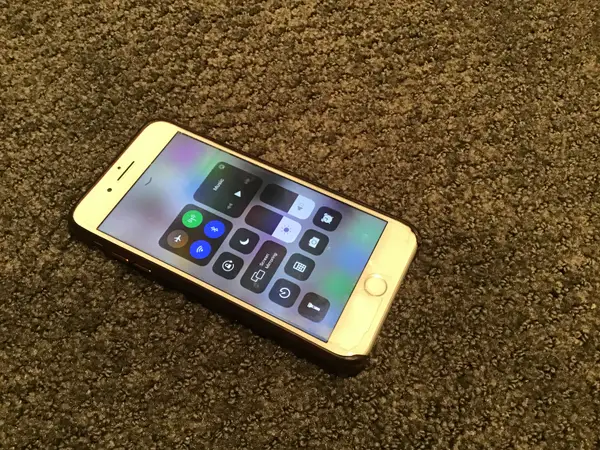
Many users make the problem harder to diagnose by skipping basic steps or jumping straight to drastic solutions.
Avoiding these mistakes will save you time and unnecessary data loss.
Wiping the entire phone before trying a simple restart or cache clear is unnecessary in most cases.
Always start with the least invasive fix and work upward only if needed.
Continuing to use the phone heavily while it displays a temperature warning can prolong the flashlight lockout.
Letting the device rest is faster than any manual troubleshooting step.
Many users troubleshoot for hours without realizing a pending software update already contains the fix.
Checking for updates should always happen early in the process, not as a last resort.
Skipping this simple physical check can lead to unnecessary software troubleshooting for what is really an obstruction issue.
Always test with the case off before assuming it is a deeper software problem.
| Common Cause | Quick Fix |
|---|---|
| Camera app open in background | Force close the camera app |
| Low Power Mode / Battery Saver | Disable it in Settings |
| Battery below critical level | Charge for 10-15 minutes |
| Overheating | Let phone cool in shade |
| Flashlight removed from toggle | Re-add from Control Center/Quick Settings |
| Case blocking LED | Remove case and retest |
| Outdated software | Update iOS or Android |
| Third-party app conflict | Uninstall flashlight apps |
| Corrupted cache | Clear Camera app cache |
| Hardware damage | Visit a repair center |
This table gives you a fast lookup before diving into device-specific steps below.
iPhones handle the flashlight through the same LED used for the camera flash, so most fixes revolve around the Camera app and Control Center.
Follow these steps in order for the fastest results.
Swipe up from the bottom of the screen and hold until app previews appear, then swipe away the Camera app.
Return to the Lock Screen or Control Center and try the flashlight again.
Open Camera, tap the flash icon at the top, and switch it on and off a couple of times.
Close the app afterward and retest the flashlight button from Control Center.
Press and hold the side button along with a volume button until the slider appears, then power off.
Wait thirty seconds, turn the phone back on, and check the flashlight from the Lock Screen.
Go to Settings, then Battery, and turn off Low Power Mode if the toggle is green.
This alone resolves a large share of flashlight issues reported by iPhone users.
Navigate to Settings, General, then Software Update to check for the latest version.
Installing available updates fixes known bugs tied to camera and flashlight controls.
Take off your iPhone case, magnetic accessories, or add-on camera lenses.
Test the flashlight again to rule out physical obstruction of the LED.
If nothing else works, go to Settings, General, Transfer or Reset iPhone, then Reset All Settings.
This restores default configurations without deleting your photos, apps, or files.
If you use Back Tap to control the flashlight, a misconfiguration here can sometimes cause conflicts.
Turn it off from Settings, Accessibility, Touch, Back Tap, and set it to None temporarily.
Android flashlight issues are almost always tied to software glitches, cache corruption, or power-saving settings rather than hardware failure.
These steps apply broadly across Samsung, Pixel, OnePlus, and other Android brands.
Press and hold the power button until the restart option appears and select it.
A simple reboot clears temporary memory and resolves most one-time flashlight glitches.
Open Settings, go to Battery, and disable Battery Saver or Power Saving Mode.
This feature is one of the most common reasons the flashlight refuses to turn on.
Go to Settings, Apps, find Camera, then tap Storage and select Clear Cache and Clear Data.
This resets the camera’s internal files without touching your saved photos or videos.
Hold the power button, then long-press Power Off until the Safe Mode option appears.
If the flashlight works in Safe Mode, a recently installed app is likely the cause.
Once you confirm a conflict in Safe Mode, uninstall apps you added right before the issue started.
Restart normally afterward and test the flashlight again.
Go to Settings, System, then System Update to check for pending updates.
Manufacturers frequently patch flashlight and camera driver bugs in routine updates.
Open Settings, Apps, tap the three-dot menu, and choose Reset App Preferences.
This clears disabled defaults and permission conflicts without erasing personal data.
Back up your data first, then go to Settings, System, Reset Options, and choose Factory Data Reset.
This wipes deep software conflicts that simpler fixes could not resolve.
If you have tried every software fix and the flashlight still refuses to turn on, the LED flash hardware itself may be damaged.
A drop, water exposure, or manufacturing defect can physically disable the component regardless of settings.
Open your Camera app, switch to photo mode, enable flash, and take a picture in a dark room.
If the LED does not flash at all during the photo, it strongly points to a hardware issue rather than a software one.
Visit an authorized repair center or the manufacturer’s service department for a proper diagnosis.
Attempting a DIY hardware fix without experience can void your warranty or cause further damage.
A few small habits can reduce how often this problem happens again.
These preventive tips are worth building into your regular phone maintenance routine.
Installing updates as soon as they are available patches bugs before they affect your flashlight.
Enable automatic updates if you tend to forget checking manually.
Running multiple camera-dependent apps at once increases the chance of conflicts with the LED flash.
Close apps you are not actively using, especially ones that access the camera.
Bulky or poorly designed cases are more likely to obstruct the flash sensor over time.
Choose cases specifically designed for your exact phone model to avoid this.
An aging battery that drains fast can trigger power-saving restrictions more frequently, indirectly affecting the flashlight.
Replacing a battery that has degraded significantly can improve overall phone reliability.
Beyond fixing the current issue, a few good habits will help your flashlight function reliably every time you need it.
These practices also protect your phone’s battery and camera hardware over the long run.
Running the flashlight at full brightness for long stretches generates heat around the LED and camera module.
Giving it short breaks during extended use, like camping or emergencies, helps prevent overheating shutdowns.
Charging and flashlight use both generate heat, and combining them in direct sunlight speeds up thermal throttling.
Use the flashlight in shaded or indoor conditions whenever charging is also happening.
Dust, lint, and pocket debris can build up around the LED opening over time and affect brightness or trigger obstruction warnings.
Wiping the area gently with a dry microfiber cloth keeps the flashlight performing at full strength.
Both iPhone and Android let you assign flashlight shortcuts to buttons, gestures, or widgets for faster access.
Double-checking these shortcuts periodically ensures they have not been accidentally reassigned to another function.
This usually happens because the Camera app is open in the background or Low Power Mode is active. Closing the camera app and disabling Low Power Mode fixes it in most cases.
A greyed-out flashlight icon usually means Battery Saver mode is on or the camera hardware is in use elsewhere. Turning off Battery Saver typically restores the icon.
Yes, many phones disable the flashlight automatically once the battery drops below a critical threshold. Charging the phone briefly resolves this.
Yes, thick cases or magnetic accessories can physically cover the LED and interfere with its function. Removing the case is a quick way to test this.
In many cases, yes, since a restart clears temporary software glitches affecting the camera and flash. It is usually the first step worth trying.
No, most flashlight problems are software-related and fixable through settings or updates. Hardware failure is less common and usually confirmed only after testing the camera flash.
Restart your phone after the update completes, then test the flashlight from Control Center or Quick Settings. If it still fails, clear the camera cache or reset settings.
Overheating protection often shuts the flashlight off automatically to prevent hardware damage. Letting the phone cool down usually resolves this.
Yes, outdated or poorly coded flashlight apps can conflict with your phone’s built-in torch controls. Uninstalling them often fixes the native flashlight.
Only as a last resort after trying restarts, updates, and cache clearing. A factory reset should be reserved for persistent issues that nothing else fixes.
Figuring out why cant I use my flashlight usually comes down to a handful of common culprits: an open camera app, Low Power Mode, low battery, overheating, or a minor software bug.
Both iPhone and Android users can resolve most cases within a few minutes using the step-by-step fixes covered above, from restarting the device to clearing camera cache or updating the operating system.
Hardware damage is possible but far less common, and it only becomes the likely explanation once every software fix has been ruled out. Keeping your phone updated, using a well-fitted case, and monitoring battery health will help prevent this issue from returning.
If your flashlight is still unresponsive after trying everything here, a visit to an authorized repair center is the safest next step to get your torch working reliably again in 2026.